

Can You Edit XbotGo Video on Computer?
Yes, you can easily edit XbotGo videos on your computer using any professional video editing software. Our system records in standard MP4 format, ensuring complete com...

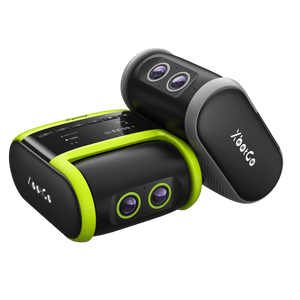
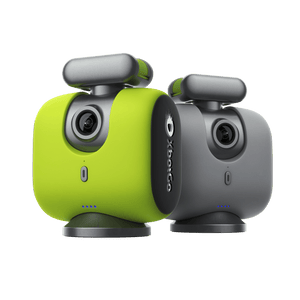
Can't connect your XbotGo Chameleon at all? Don't worry – this comprehensive guide will diagnose and resolve your connection problems based on what you're seeing in the app.
If the Chameleon appears in your XbotGo App device list:
Ensure full battery charge
Tap the Refresh button in device management
Close and reopen the XbotGo App
Reset Bluetooth by double-clicking the power button
Look for the side light indicator – a solid light means it's connected to another phone. Disconnect it first.
If you can't see the Chameleon in your app:
Grant Bluetooth permissions in phone settings
Enable Bluetooth if it's turned off
Confirm the device is powered on (wait for calibration completion)
Turn off power-saving modes
Remove old Bluetooth pairings from your phone's settings to prevent conflicts.
Need additional help? Contact our technical team at Support@XbotGo.com for personalized assistance.