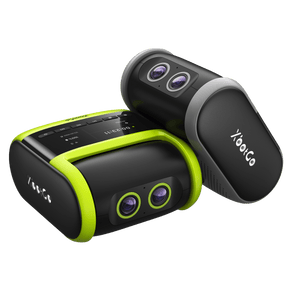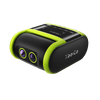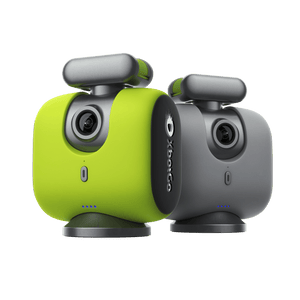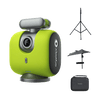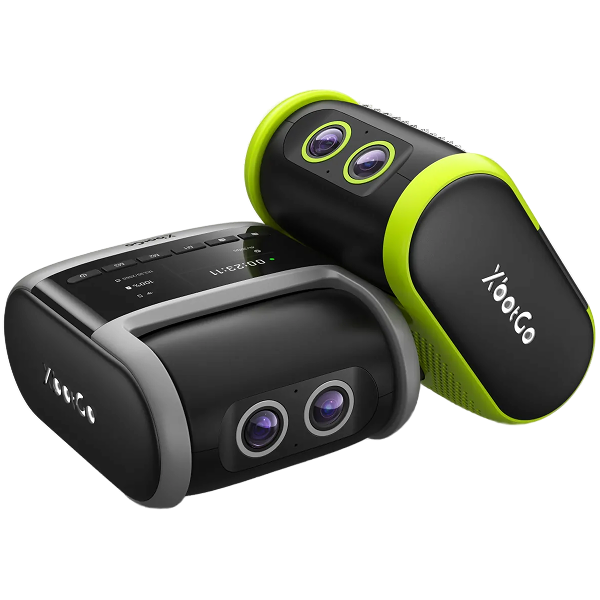


XbotGo Falcon

How to Livestream to GameChanger with XbotGo (Step-by-Step)
XbotGo cameras are GameChanger-compatible, so you can broadcast a game straight to GameChanger while the AI keeps the action in frame. GameChanger picks up your camera as an External Camera — no capture card, no laptop, no extra hardware. Here's how to set it up.
Before You Start
- An XbotGo camera paired in the XbotGo APP
- The XbotGo APP and the GameChanger app installed on the same phone
- XbotGo APP version 4.4.7 or later
How to Livestream to GameChanger
- Connect your XbotGo device in the XbotGo APP.

Connect your XbotGo device in the XbotGo APP
- Enter the shooting interface in the XbotGo APP.

Enter the shooting interface in the XbotGo APP
- Open the GameChanger app, set up your livestream or recording settings, select “External Camera,” choose your audience settings, and select XbotGo as the external camera.

Select External Camera in the GameChanger app and choose XbotGo
- You’ll be redirected back to the XbotGo APP. When the livestream start notification pops up, tap Yes to complete the setup.

Tap Yes when the livestream notification pops up in the XbotGo APP
- Your livestream starts automatically.

The GameChanger livestream running from an XbotGo camera
Wi-Fi Setup for XbotGo Falcon
By default, a Falcon livestream runs on your phone’s mobile data. To stream over Wi-Fi instead, set the network up in the XbotGo APP Live settings before you open the GameChanger app.
- Tap the live icon to open the livestream setup.

Tap the live icon in the XbotGo APP
- Tap “Video & Network Settings.”

Tap Video and Network Settings in the XbotGo APP
- iPhone: Tap “Select Wi-Fi Network,” choose your network, and enter the password. Once the screen shows “Connected XXX,” you’re set.

Select your Wi-Fi network on iPhone in the XbotGo APP
- Android: Tap “Select Wi-Fi Network” > “Set Wi-Fi Network,” then choose your Wi-Fi in your phone’s system settings. Return to the XbotGo APP, select the network from the list, and enter the password. A checkmark next to the name means it’s connected.

Select your Wi-Fi network on Android in the XbotGo APP
Once Wi-Fi is connected, open the GameChanger app and follow the livestream steps above.
Prefer Custom RTMP?
XbotGo APP 4.4.7 also added custom RTMP streaming to GameChanger — another easy way for teams, coaches, and parents to broadcast the game. See the XbotGo APP 4.4.7 update for the full feature list.