Γ
Skip to content
Open menu
XbotGoXbotGo
  • Products
    Falcon

    Falcon

    Chameleon

    Chameleon

  • Accessories
    NT1 Tripod

    NT1 Tripod

    NT4 Tripod

    NT4 Tripod

    NT4 Pro

    NT4 Pro

    Umbrella

    Umbrella

    Chameleon Case

    Chameleon Case

    Remote Control

    Remote Control

  • Sports& Users
    Sports
    Soccer Basketball Ice Hockey Lacrosse Football Handball
    Users
    Parents Coaches Clubs Players
  • Sports
    Soccer Basketball Ice Hockey Lacrosse Football Handball
  • Users
    Parents Coaches Clubs Players
  • Explore
    Blog Community About Us Dream to Goal
  • Help Center
    User Guide Customer Service
Search Cart Account
  • Products
    Falcon

    Falcon

    Chameleon

    Chameleon

  • Accessories
    NT1 Tripod

    NT1 Tripod

    NT4 Tripod

    NT4 Tripod

    NT4 Pro

    NT4 Pro

    Umbrella

    Umbrella

    Chameleon Case

    Chameleon Case

    Remote Control

    Remote Control

    View All

    View All

  • Sports & Users
    Sports
    SoccerSoccer BasketballBasketball Ice HockeyIce Hockey LacrosseLacrosse FootballFootball HandballHandball
    Users
    ParentsParents CoachesCoaches ClubsClubs PlayersPlayers
  • Sports
    Soccer Basketball Ice Hockey Lacrosse Football Handball
  • Users
    Parents Coaches Clubs Players
  • Explore
    Blog Community About Us Dream to Goal
  • Help Center
    User Guide Customer Service
Login
日本語

XbotGo Falcon

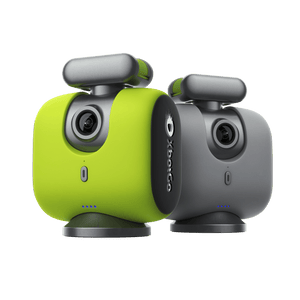
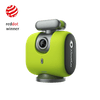
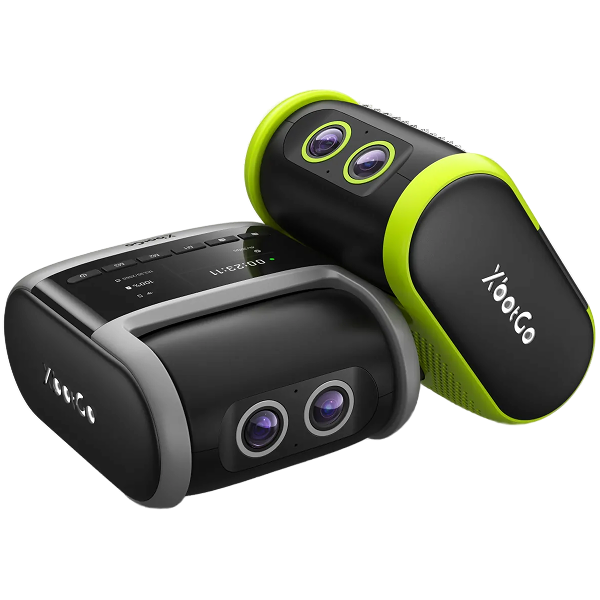
XbotGo Falcon All-in-One 4K Camera — just power on and play. Powered by XbotVision 3.0, it delivers high-speed, precise auto-tracking for soccer, basketball, hockey, and 10+ sports. The all-in-one app lets you stream live for free, edit with AI, and share highlights instantly. No subscriptions.
Learn More
XbotGo Falcon AI Sports Camera

How to Record a Volleyball Game with the XbotGo Falcon

For most teams, learning how to record a volleyball game means drafting one parent to stand behind the endline for two hours, holding a phone, watching the match through a five-inch screen.

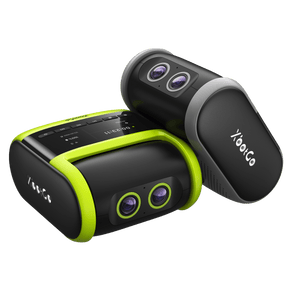
The XbotGo Falcon replaces that person. Set it up before warm-ups, press record, and go sit down. This guide covers exactly where to put it on the court and how to get it running before the first serve.

What you need before match day

  • The Falcon, charged. It runs about four hours per charge.
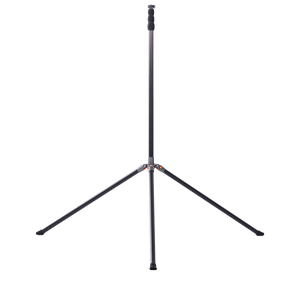
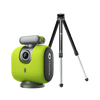
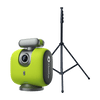
  • A tripod that reaches 8 feet. This is the part people get wrong — see the next section.
  • A microSD card. Required — the Falcon cannot record without one. Use a V30 card rated for at least 30 MB/s write, UHS-I, up to 1 TB. Format it in the app, which applies the exFAT file system automatically.
  • Your phone, running XbotGo App v4.3.0 or later, with Bluetooth and Wi-Fi both on.

* Buy the card XbotGo recommends rather than the cheapest V30 you can find. Owners who cut that corner report files corrupting every few games.

Where to put the Falcon on a volleyball court

Here's the setup, and it surprises people:

Put the tripod 3 m (10 ft) outside the sideline, raise it to 2.5 m (8 ft), and aim the lens at the center line.

Sideline — not the endline. Volleyball is one of only three Falcon modes that doesn't sit on the court's center line, and it's deliberate. From the side, the camera sees both teams' rotations, both back rows, and the full width of play at once. That's the angle tracking works best from, and the angle a coach reviews film from.

The 8-foot height is doing something specific. A regulation net stands at 2.43 m for men and 2.24 m for women. At 2.5 m your lens sits just above the tape — high enough to see over the net and past the front row to the defenders behind them, low enough that you're not looking down at the top of everyone's head.

Ignore the "you need a 14-foot tripod" advice. It circulates widely, and it's real advice — for outdoor soccer, from an older phone-mount product. On a big pitch you go high to keep sideline crowds out of frame. A gym doesn't have that problem, and going too high costs you vertical framing the Falcon can't correct once recording starts. Volleyball parents who film manually landed on the same number independently: they run their light stands at 8 to 9 feet.

Setting up, step by step

  1. Insert the microSD card before anything else.
  2. Unlock the power safety lock on the bottom of the Falcon, then press the power button. Wait for it to finish booting — the lens completes an up-and-down calibration movement when it's ready.
  3. Mount it using the quick release plate. The Falcon can't screw onto a tripod directly.
  4. Connect to the app. Open the XbotGo App, go to Device Connections, tap Add Device, find Falcon, tap Connect. Turn off any VPN or ad-blocker first, and on iPhone allow Local Network permission. Your phone will drop its own Wi-Fi to join the Falcon's — that's expected.
  5. Tap Record, then choose Volleyball mode. Calibration starts automatically. Don't touch the camera while it runs.
  6. Frame the shot at eye level, then raise the tripod. Do it in that order. Raising the Falcon with the phone connected is the single most common way people lose their connection mid-setup.
  7. Press record, then leave it alone. If the framing needs a nudge, move the tripod — never turn the camera body by hand.

One time-saver for regulars: the Falcon's M1/M2/M3 buttons ship set to Soccer, Basketball and Ice Hockey. Assign Volleyball to one of them and you can start recording from the camera body without touching your phone at all.

Before first serve

Card in, battery charged, tripod 10 feet outside the sideline at 8 feet high, lens on the center line. Volleyball mode selected, calibration finished, framing checked at eye level before you raised it.

That's the whole job. The XbotGo Falcon handles the rest on its own, which is the entire point — you came to watch your kid play, not to operate a camera. For the full manual on any setting above, the XbotGo setup guide walks through each one.

Share

August 10, 2026 — XbotGo Help
Older articles Back to How tos
Email Icon

Buy on the XbotGo Store

Free Shipping
30-Day Hassle-Free Return
Secure Payments
Global Customer Support
  • XbotGo Chameleon
  • XbotGo Falcon
  • T4 13 ft Tripod
  • NT1 3.77 ft Tripod
  • XbotGo Accessories
  • User Guide
  • Customer Service
  • Shipping & Returns
  • Track Your Order
  • Join Community
  • Partnership
  • XbotGo Cloud
  • Our Story
  • Blogs
  • Career
  • Terms of Use
Call Us: +1 (888) 894-1886
Business Hours: 8:00 AM - 6:00 PM EST ( Mon - Sun )
Customer Care: Support@XbotGo.com
Marketing & Partnerships: Business@XbotGo.com
  • Facebook
  • YouTube
  • Instagram
  • TikTok
  • Discord
Amazon American Express Apple Pay Diners Club Discover Google Pay Mastercard PayPal Shop Pay Venmo Visa
  • 日本語
  • Facebook
  • YouTube
  • Instagram
  • TikTok
  • Discord
Amazon American Express Apple Pay Diners Club Discover Google Pay Mastercard PayPal Shop Pay Venmo Visa
XbotGo Logo Play Hard, Film Smart

Privacy Policy | Your Privacy Choices | Use of Cookies | Terms of Use | Cookie Preferences | Do Not Sell Or Share My Personal Information

Copyright © 2026 XbotGo All Rights Reserved.

  • United States (USD $)
  • English
  • Français
  • Español
  • Italiano
  • Deutsch
  • Português (portugal)
  • 日本語
Your cart
You may like
  • XbotGo NT4 PRO Carbon Fiber Tripod – 12.8ft
    From $249.99 USD
    Shop
    NT4 Pro Only
    XbotGo NT4 PRO Carbon Fiber Tripod – 12.8ft
    Falcon Green + NT4 Pro
    XbotGo NT4 PRO Carbon Fiber Tripod – 12.8ft
    Falcon Grey + NT4 Pro
    XbotGo NT4 PRO Carbon Fiber Tripod – 12.8ft
  • xbotgo umbrella
    umbrella suit
    XbotGo Weather Guard Umbrella
    $49.99 USD
    Shop
  • Fast & Free Shipping icon

    Fast & Free Shipping

  • 1-Year Warranty icon

    1-Year Warranty

  • 30-Day Free Returns icon

    30-Day Free Returns

  • Secure Checkout icon

    Secure Checkout

Pay your way
Amazon American Express Apple Pay Diners Club Discover Google Pay Mastercard PayPal Shop Pay Venmo Visa
Checkout
Your cart
Your Cart is Ready!
Shop Now