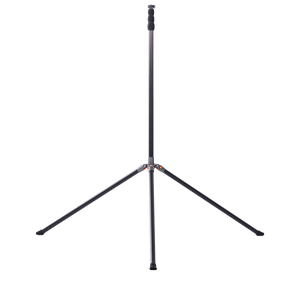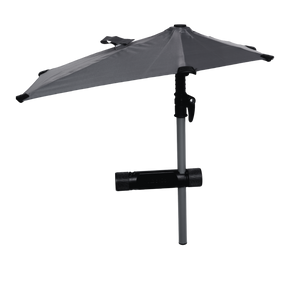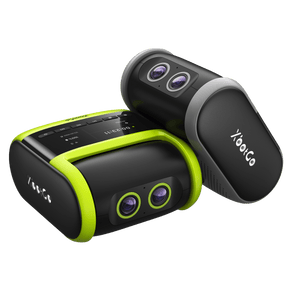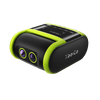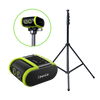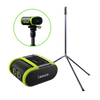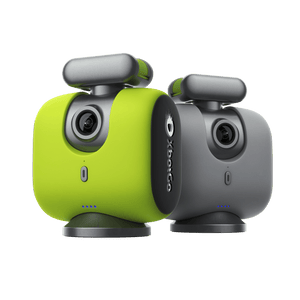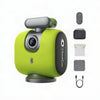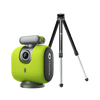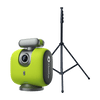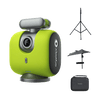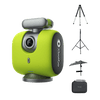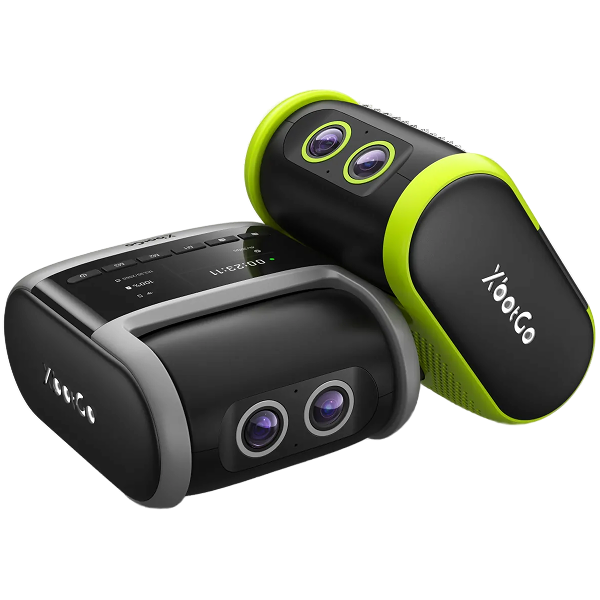
Over 150,000 coaches, parents, and athletes choose XbotGo Chameleon for perfect soccer, basketball, and 20+ sports capture. One-minute setup, then AI takes over: auto-tracking player, smart zooming, instant highlights, and 20GB free cloud storage - no subscriptions, ever.
Having trouble connecting your XbotGo Chameleon via Bluetooth? Our systematic approach addresses the most common connectivity issues that sports videographers face.
Step-by-Step Connection Recovery
1. Power and Compatibility Check
Fully charge your Chameleon and update both the XbotGo app and firmware to the latest versions for optimal compatibility.
2. Exclusive Connection Protocol
Disconnect other XbotGo devices from your phone's Bluetooth to prevent interference and ensure exclusive pairing.
3. Permission Verification
Grant Bluetooth permissions to the XbotGo app in your phone's system settings – this is essential for proper functionality.
4. Bluetooth Reset
Double-click the power button to reset the Chameleon's Bluetooth connection and clear any pairing conflicts.
5. System Refresh
Restart your phone and completely close the XbotGo app before reopening it.
6. Alternative Testing
Try connecting to a different phone to verify if the issue is device-specific.
For advanced troubleshooting, provide your phone model and OS version to our support team. Upload debug logs via My → Settings → Upload Log for technical analysis.