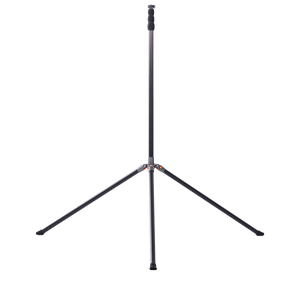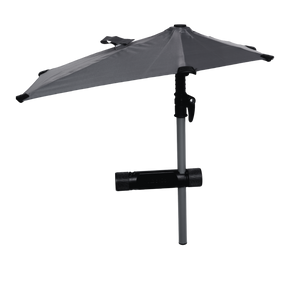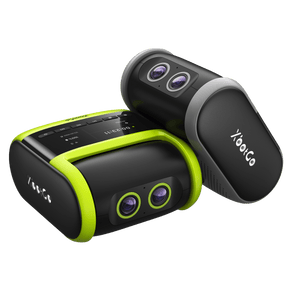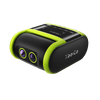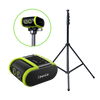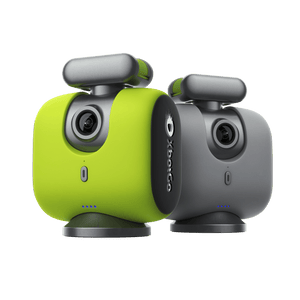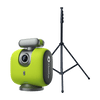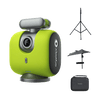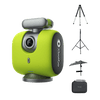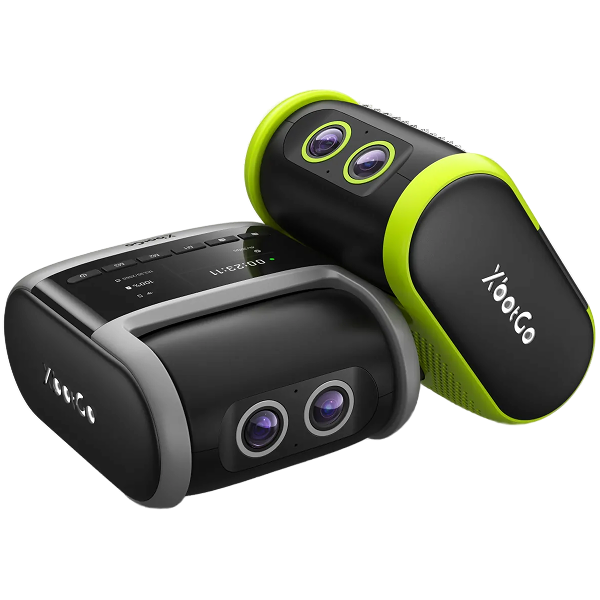
Over 150,000 coaches, parents, and athletes choose XbotGo Chameleon for perfect soccer, basketball, and 20+ sports capture. One-minute setup, then AI takes over: auto-tracking player, smart zooming, instant highlights, and 20GB free cloud storage - no subscriptions, ever.
XbotGo Chameleon Won't Connect? The Complete Guide
Identify Your Connection Issue First
Can't connect your XbotGo Chameleon at all? Don't worry – this comprehensive guide will diagnose and resolve your connection problems based on what you're seeing in the app.
When You See "Xbotxxx" in Device List
If the Chameleon appears in your XbotGo App device list:
Ensure full battery charge
Tap the Refresh button in device management
Close and reopen the XbotGo App
Reset Bluetooth by double-clicking the power button
Check Connection Status
Look for the side light indicator – a solid light means it's connected to another phone. Disconnect it first.
When Device Doesn't Appear
If you can't see the Chameleon in your app:
Grant Bluetooth permissions in phone settings
Enable Bluetooth if it's turned off
Confirm the device is powered on (wait for calibration completion)
Turn off power-saving modes
Clean Up Connections
Remove old Bluetooth pairings from your phone's settings to prevent conflicts.
Need additional help? Contact our technical team at Support@XbotGo.com for personalized assistance.